Scanning may feel like magic, but 3D capture technology is a product of applied computer science and engineers around the world working tirelessly until the technology was handheld and easy. We thought you’d like to learn how our sensors work, and how they utilize our Software Development Kit to produce 3D meshes in real time. Partly because it's fun, but also because it helps you better understand how to use the sensor.
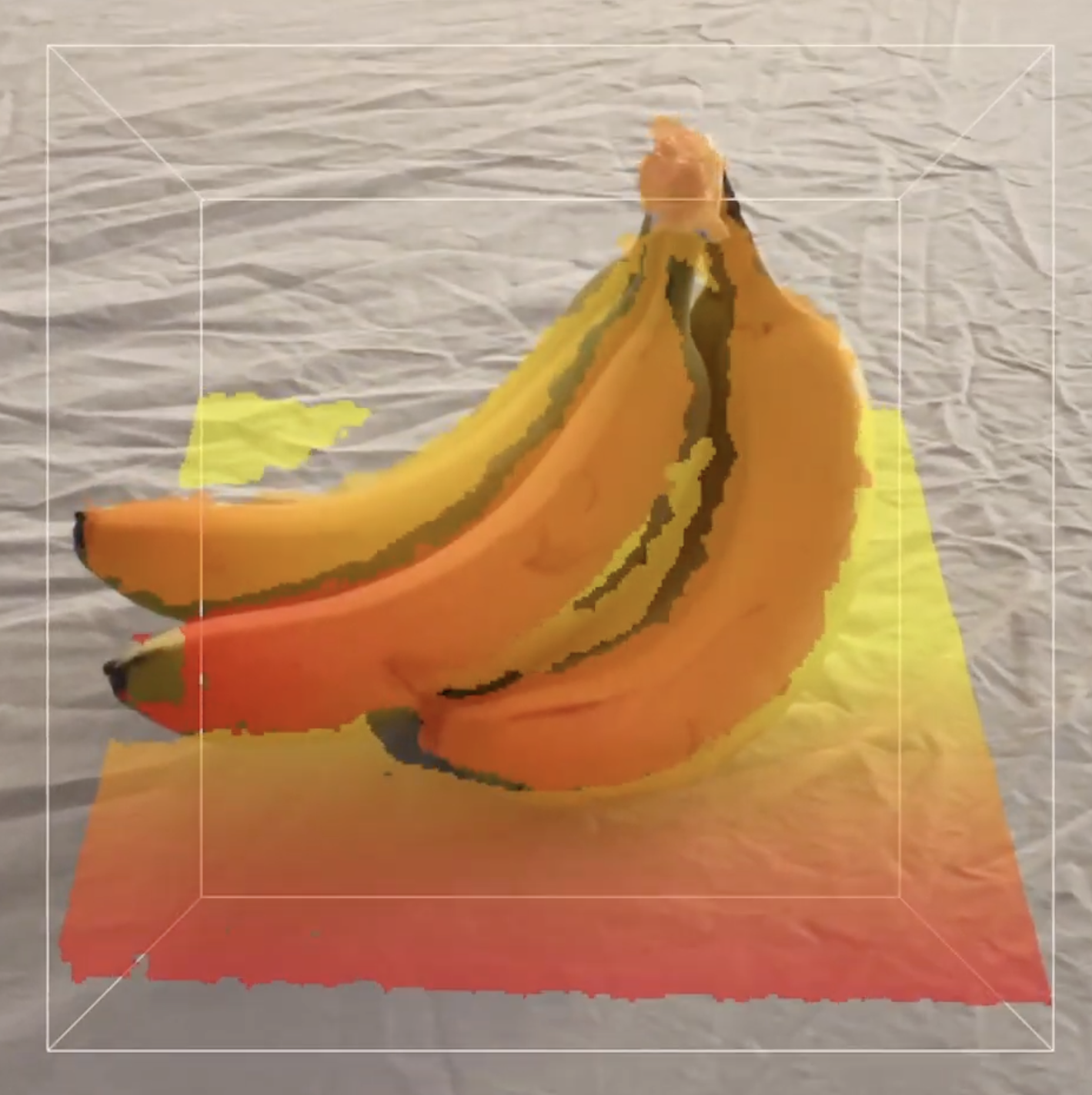 Dividing the World - All SLAM (Simultaneous Localization, And Mapping) processes are pretty demanding, computationally speaking. Particularly if you want high detailed models, especially if you want those models in real time, and definitely if you want them instantly.Therefore, before scanning even begins, your sensor and application divide the world into ‘scan’ and ‘ignore’ with something called a ‘Bounding Box’. The bounding box is an imaginary cube that captures objects in real space, and while the cube can be as big or small as you want, everything outside the cube is ignored. Once Scanning begins, the cube locks in place, giving the Sensor a focal point as you continue to scan.
- The First Depth Frame - Your sensor is equipped with two synced cameras as well as a projector. The projector fires a fixed IR pattern onto a target - this pattern will be important for tracking, but we’ll get to that in the next section. When you click ‘scan’ the first depth frame is captured by merging the two pictures captured by the two cameras, creating a ‘Depth Map’ or a 3D image from a single view point. In other words, the cameras see the world like your eyes, and just like your eyes can’t see behind the apple you are looking at, neither can the sensor. The 3D images only look 3D from one, specific position.
- ICP - A single depth map won’t be that useful. We’ll need to merge it with dozens, maybe hundreds of different depth maps taken from different positions. We’ll do that with Iterative Closest Point (ICP). ICP is an algorithm that looks at all the points in two depth maps. Since we know Depth Map A’s relationship to Depth Map B (thanks to things like the projected light pattern, the accelerometers in your iPad, and distance calculations being run in the background), we can find the closest point in depth map B to any given point in Depth map A. ICP assumes that these are the same points, sewing together the two scans along the identified Closest Points across the two Depth maps to join the two maps together. Any Depth maps in Map B that have no matches to Map A, are considered to be new.
- Repeat Until Done - We can continue adding depth maps to the model, as many as we want, until the model is fully covered (or we run out of memory). The end result is called a Point Cloud, and while it defines tens of thousands of points across an object that you scan, it isn’t visible. Yet.
- The March of the Cubes - You may have noticed in older versions of the Structure Apps there was a slider that controlled voxel size. What was that? Well, when we’re done scanning, the area of the bounding box is divided into lots of tiny invisible cubes, called voxels. If a point from a point cloud intersects with one of these voxels, a piece of mesh is generated. The cubes ‘march’ up and down and across the bounding box, extending the mesh across the point cloud, until you have a 3D object.
The Stuff We Left Out.
Some of you probably noticed we cut some stuff from the cycle we defined above. So, here is that stuff.
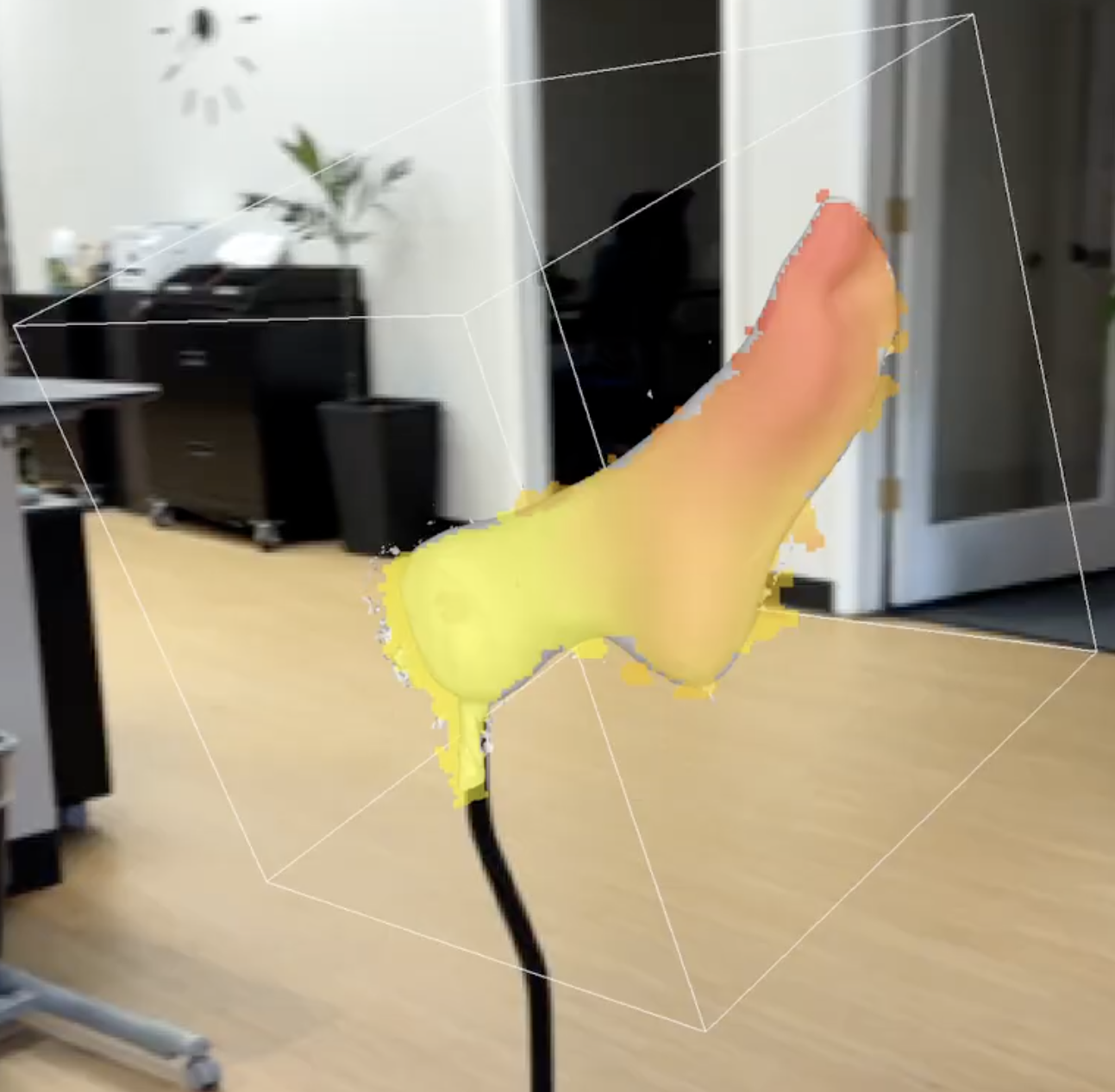 Meshes during Scanning - You may notice during scanning that you don’t see a point cloud forming, you see a mesh forming. This is because a lighter version of marching cubes is running while you scan, to give you visual confirmation of what you’re scanning (remember, point clouds are technically invisible). A more comprehensive Marching cubes algorithm is run on the point cloud when you hit the done button.
 - Boundless Scanning - It is possible to scan large objects without a bounding box. In that case a ‘moving’ box is created around the user, and as the user moves through the world, the sensor forgets about anything that wasn’t scanned.
- Tracking - When you scan an object, you may notice that the system says, “Please put the model back into view” even when you’re facing the object. What’s happening there is that ICP isn’t finding any tracking pixels, special pixels in each depth frame it uses to speed up the joining process. Normally, this can be fixed by making the bounding box bigger (adding more tracking pixels) or moving closer to the target.
We hope you enjoyed this journey through scanning. Hopefully, you understand how your sensor works a little better now, and you have a better idea of how it sees the world.